A physical vernier or digital caliper is a precision tool most people don't own, and buying one just to check a bolt diameter or a phone case width is overkill. An online digital caliper solves the same problem in a browser tab — here's how it works and when it's the right tool for the job.
What an Online Digital Caliper Actually Does
Unlike a straight-edge ruler, a digital caliper measures a 2D bounding box: you draw a rectangle around an object, and the tool reports width, height, and the corner-to-corner diagonal simultaneously. That's the same core idea as a physical caliper's jaws, just applied to anything you can place against — or photograph flat on — your screen.
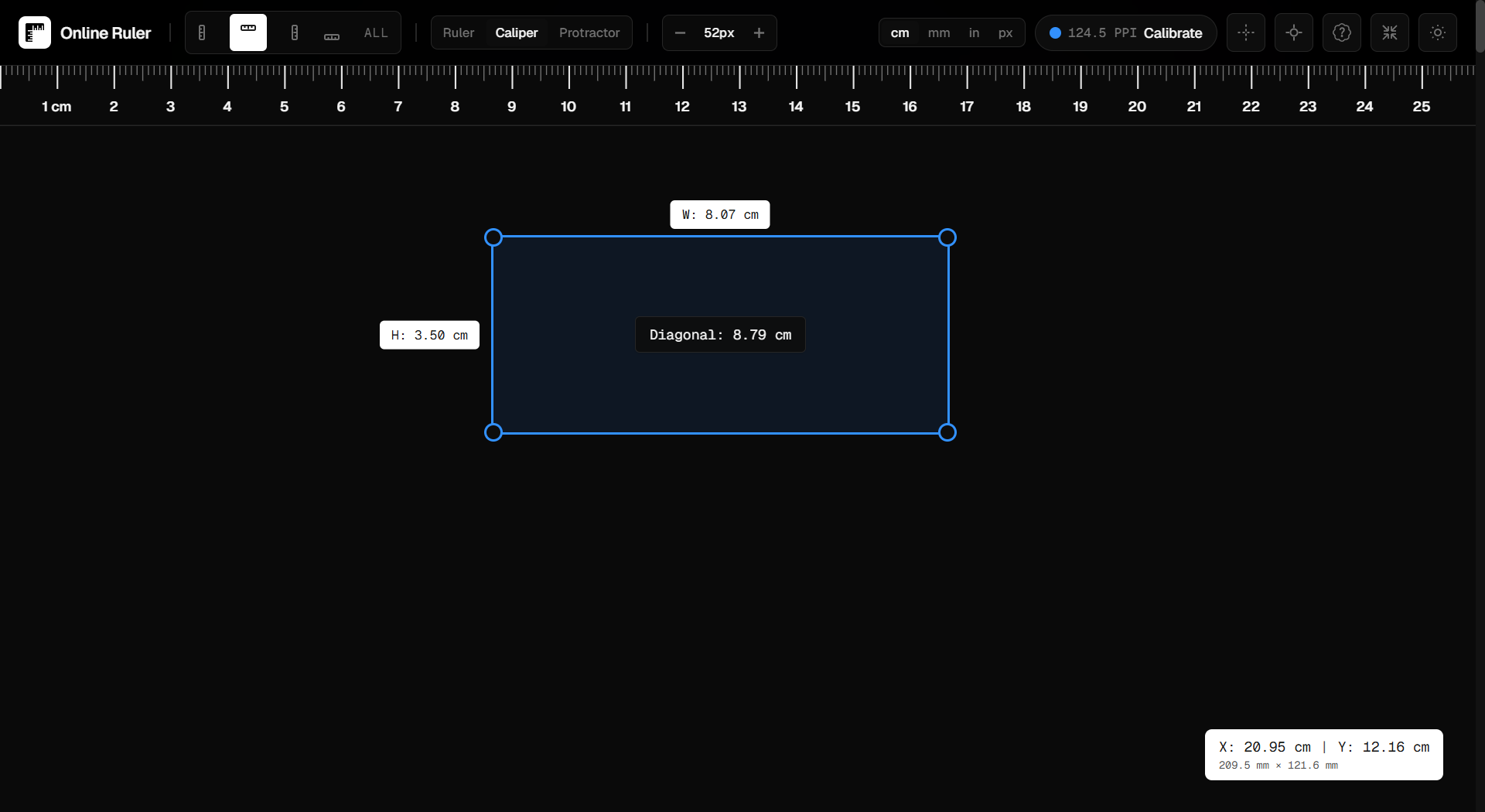
Step-by-Step: Using RulerGo's Online Caliper
RulerGo includes a digital caliper mode built on the same calibrated scale as its ruler, so you don't need to set anything up twice.
- Calibrate your screen first. This is the step that makes the measurement real-world accurate rather than a rough guess. Use auto-detect, your screen's diagonal size, or hold a credit card against the on-screen outline until it matches.
- Switch to Caliper mode. Press M on your keyboard, or select Caliper from the toolbar.
- Draw the bounding box. Click and drag across the object you want to measure — this could be a physical item pressed against the screen, or an on-screen image or design element.
- Read the three measurements. Width appears along the top edge, height along the right edge, and the diagonal is shown in the center badge.
- Fine-tune with corner handles. Drag any of the four corner handles to adjust the box with pixel-level precision if your first drag wasn't perfectly aligned.
- Move the box if needed. Click and drag inside the box body to reposition the whole measurement without redrawing it.
- Press M again to return to standard ruler mode when you're done.
What People Actually Use an Online Caliper For
- Bolts, screws, and hardware — checking thread diameter or head size before a repair trip.
- Phone and tablet cases — verifying a case will fit a specific device model.
- Watch cases and jewelry — measuring case diameter or band width.
- PCBs and electronic components — checking board dimensions or connector spacing.
- Lens filters — comparing filter thread diameters (e.g., 58 mm vs. 67 mm) before buying an adapter.
- UI and design work — measuring on-screen element dimensions in true pixels rather than guessing from a mockup.
Where an Online Caliper Has Real Limits
An online digital caliper measures in two dimensions — width, height, and the diagonal between them. It can't measure:
- Depth or thickness of a 3D object (a physical caliper's jaws can close around material thickness; a screen-based tool can't).
- Internal diameters (the inside of a pipe or hole) the way a physical caliper's inside jaws can.
- Sub-millimeter machining tolerances — for that level of precision, a proper vernier or digital micrometer is still the right tool.
For everyday checks — "will this fit," "how big is this," "what's the diagonal of this box" — an online caliper is more than accurate enough once your screen is calibrated.
FAQ
Is an online caliper as accurate as a physical one?
For width, height, and diagonal on a flat or screen-pressed object, yes, once your screen is calibrated. For depth, internal measurements, or machinist-level tolerances, a physical caliper is still necessary.
Do I need to calibrate before every measurement?
No — calibration is saved per device and browser, so you only need to repeat it if you switch screens.
Can I use an online caliper on my phone?
Yes. The caliper mode works the same way on touchscreens — drag to draw the box, then adjust the corner handles with your finger.
What's the difference between the ruler and the caliper on RulerGo?
The ruler measures one dimension at a time along an edge. The caliper draws a box and gives you width, height, and diagonal in a single action — faster when you need more than one measurement of the same object.