If you've ever held a real ruler up to your monitor, you've probably noticed the inch marks don't line up. That's not a bug in your eyesight — it's because every display packs pixels at a different density, and web browsers have no way of knowing your screen's actual physical dimensions. Learning how to calibrate screen size on your device fixes that gap, taking only about 30 seconds.
Why Your Screen Doesn't Show "Real" Size by Default
Web browsers assume a fixed rule: 96 pixels equal one inch. That standard was a reasonable average decades ago, but modern hardware has evolved significantly. A 24-inch desktop monitor might sit close to 92 PPI (pixels per inch), while a 14-inch laptop panel can exceed 250 PPI. A smartphone screen can easily run past 450 PPI.
When a browser applies a flat 96 PPI rule across all these varying devices, your on-screen "inch" ends up anywhere from a few percent to more than 80% too small or too large. That discrepancy is why an uncalibrated digital ruler can't be trusted for anything beyond a rough guess.
What Screen Calibration Actually Does
Calibration replaces that generic 96 PPI guess with your screen's real pixel density. Once a web tool knows your true PPI, it can draw ruler marks, caliper boxes, and protractor scales that match physical units exactly — 1 cm on screen becomes 1 cm in the real world.
How to Calibrate Your Screen in Under a Minute
RulerGo is a free browser-based ruler, caliper, and protractor that handles this calibration step for you. You can choose from four different methods depending on what you know about your setup:
- Auto-Detect (fastest): Open the online ruler tool and it immediately checks your resolution, aspect ratio, and device pixel ratio against a built-in hardware database. If it finds a match, your scale is applied instantly and the calibration indicator turns green — no manual input needed.
- Device Selection: If you know your exact laptop, phone, or monitor model, search for it in the device list and select it. This pulls the manufacturer's factory PPI spec directly.
- Screen Diagonal: Know your screen size in inches but not the exact model number? Enter the diagonal measurement (or pick a common preset like 13.3", 15.6", 24", or 27") and the tool calculates PPI automatically from your screen's native resolution.
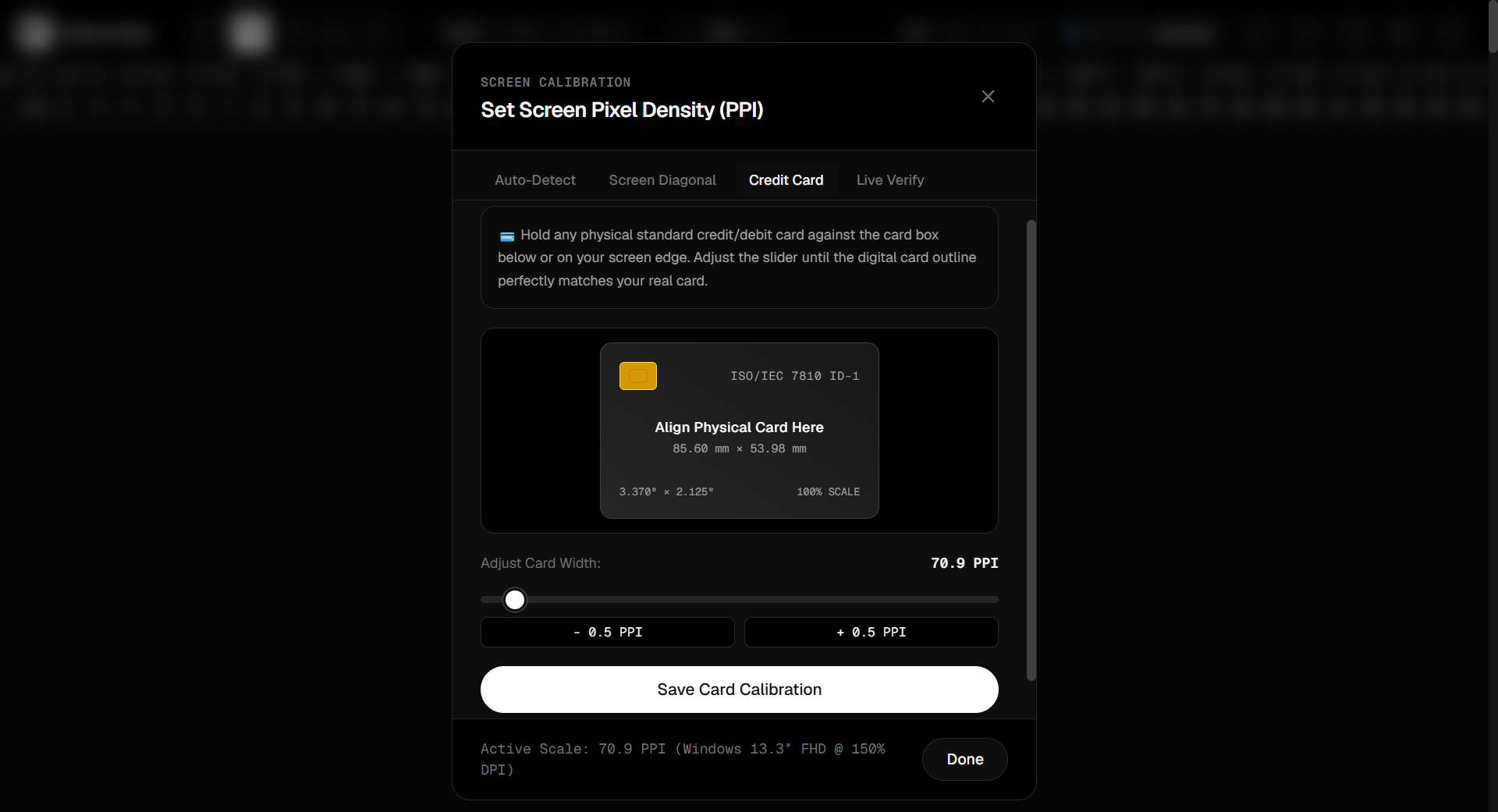
- Credit Card Calibration (most accurate): Every standard bank card, ID, or membership card is manufactured to the same fixed international size (85.60 × 53.98 mm). Hold a real card up to the on-screen card outline and drag the slider until it matches exactly. Because this ties your display scale directly to a physical object, it is the most reliable calibration method available.
Verify Your Calibration
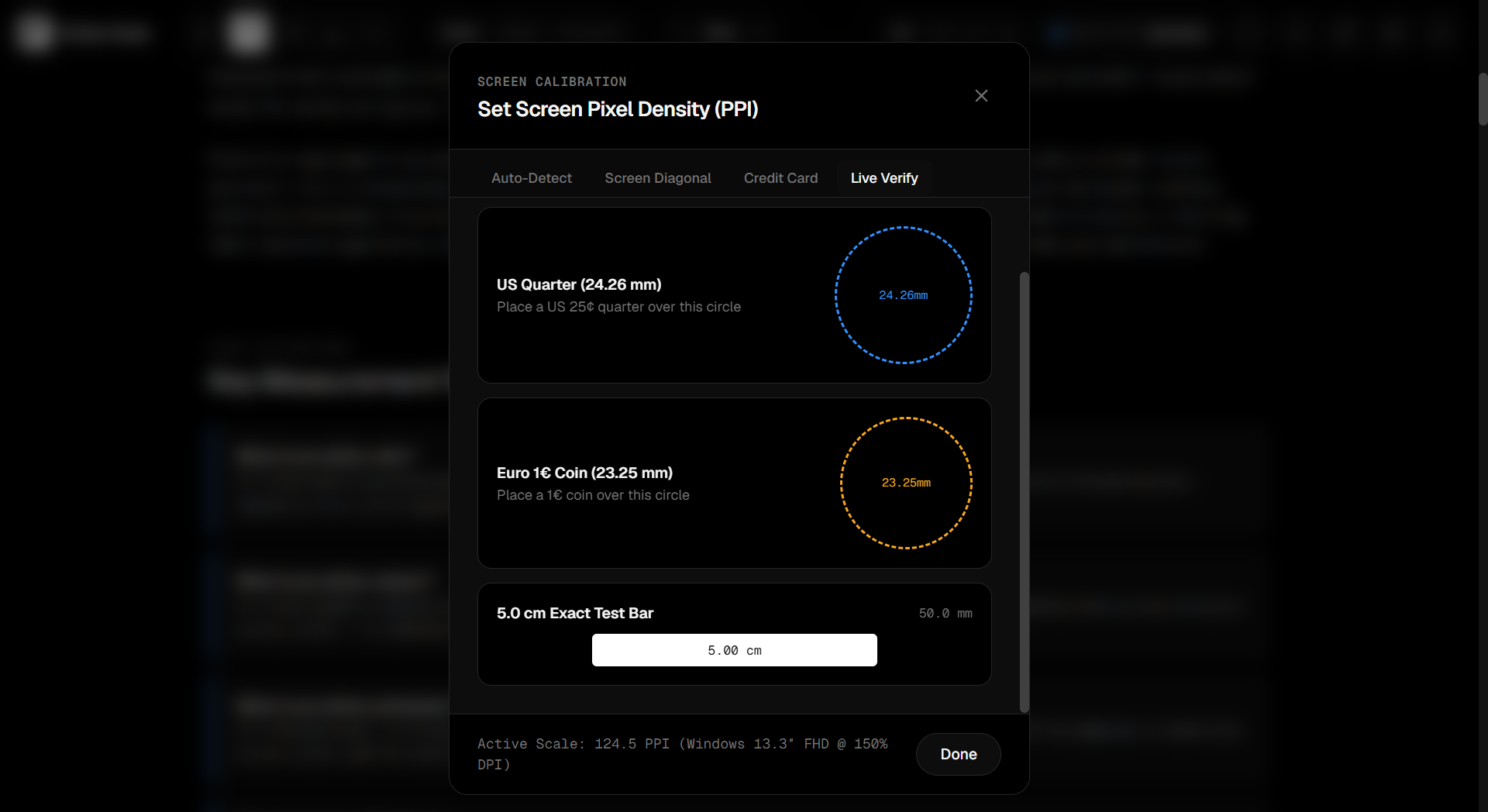
After calibrating, it's worth double-checking your result. RulerGo includes a Live Verify feature that lets you compare your calibration against everyday reference objects — a US quarter, a Euro coin, or a fixed 5 cm test bar. If the on-screen graphic lines up with the physical object in your hand, your calibration is 100% accurate.
Why Calibration Matters Beyond Everyday Measuring
Accurately calibrating your screen scale turns a basic screen into a dependable precision workspace:
- Crafting and sewing: check fabric swatches or paper pattern pieces directly against a calibrated screen ruler without pulling out a measuring tape.
- Small parts and hardware repairs: identify screws, washers, and small connectors with true millimeter accuracy.
- UI/UX design and development: check CSS pixel dimensions or UI spacing against real-world physical dimensions.
- Online shopping: preview the exact physical size of a phone case, watch face, ring, or accessory right on your monitor before buying.
Does Calibration Stick, or Do I Have to Redo It Every Time?
Once you calibrate on a specific device and browser, your settings are saved locally. You won't need to repeat the setup on return visits. If you connect a different monitor, switch phones, or open a different browser, you will want to recalibrate for that specific screen since pixel density varies per display.
FAQ
Is auto-detect calibration accurate enough on its own?
For most modern laptops and standard monitors, yes. For maximum precision — especially on custom-built or ultra-wide displays — running the credit card or Live Verify check afterward is recommended.
Do I need to install software or an app to calibrate my screen?
No. RulerGo runs entirely inside your browser with no downloads, browser extensions, or account sign-ups required.
Does screen calibration work on mobile devices and tablets?
Yes. Calibration works seamlessly across desktop screens, tablets, and smartphones using auto-detect, device selection, or credit card alignment.
How often should I recalibrate my display?
Only when you switch devices, change your external monitor setup, or clear your browser cache.